
Apps & devices

How to bookmark or add home screen icon for the IsOn24 app on iPhone

Add an IsOn24 app icon to your iPhone home screen from a text alert, so your calls, messages, and leads are one tap away.

Add a Home screen icon for the IsOn24 app on the iPhone
1. Go to the Text message alerts from the IsOn24 AI voice assistant.
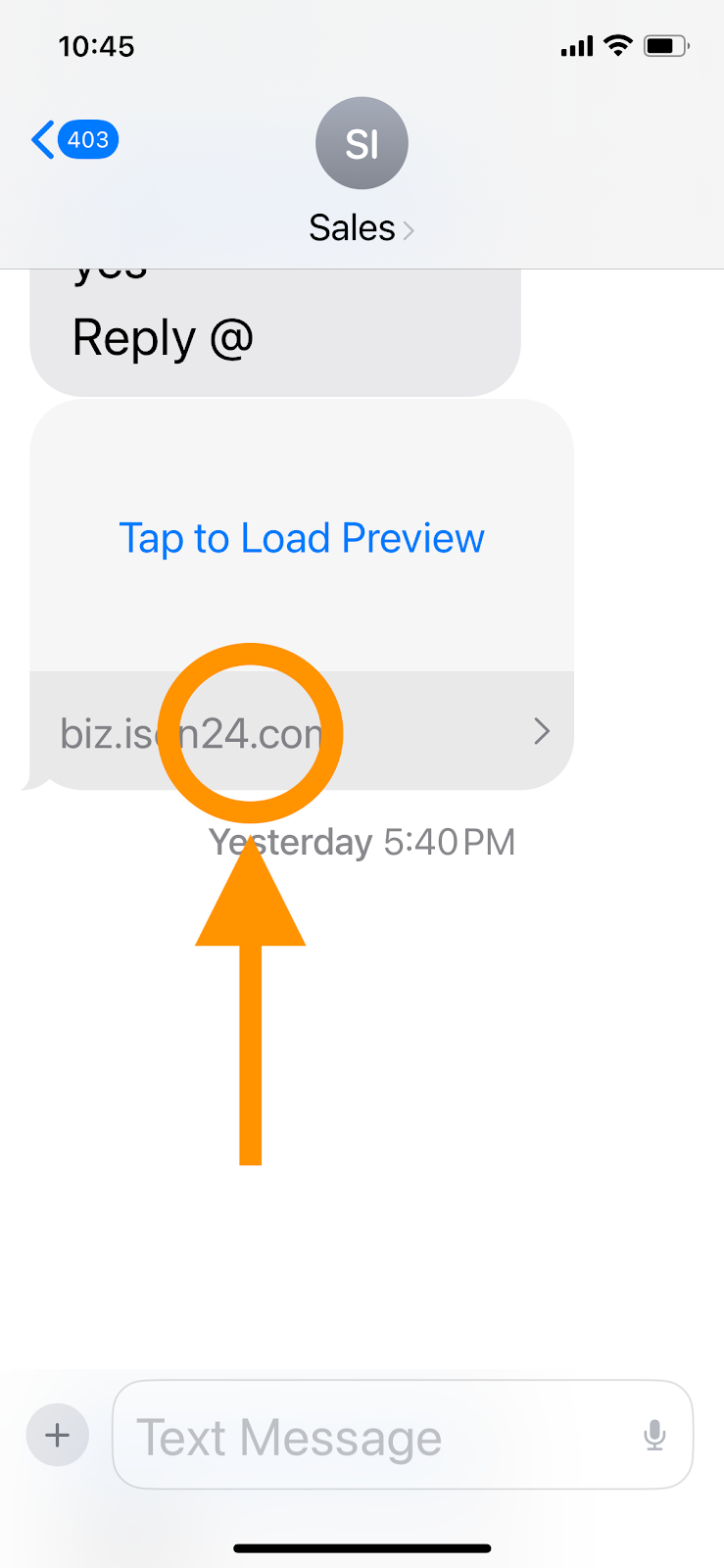
Tap on the link in the Text alert from IsOn24 Assistant
IsOn24 text message alert

2. The IsOn24 app will open in the Safari browser. Login as needed.
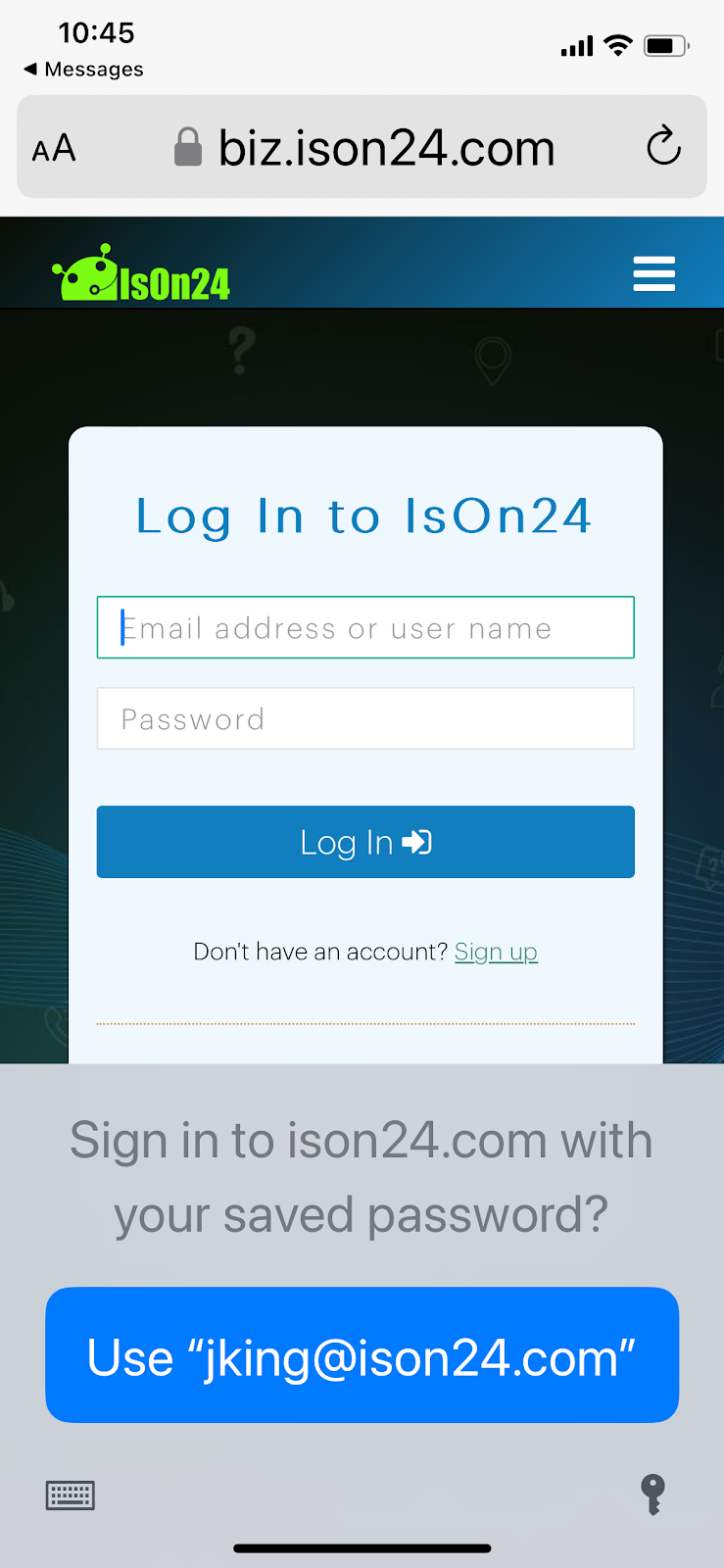
Login as needed
Login to IsOn24 on the Safari browser

3. Tap on the share icon at the Safari action bar as below:
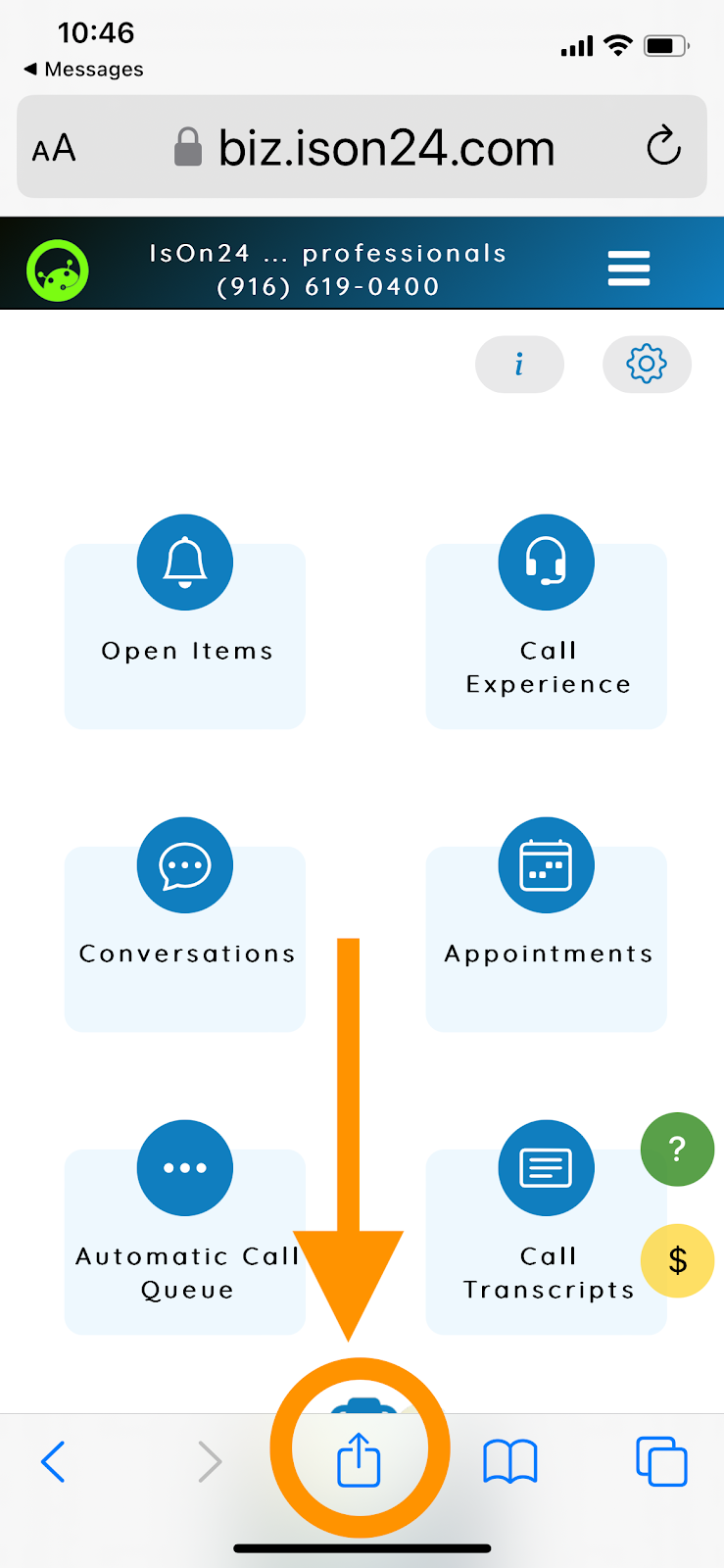
Tap on the share icon at the Safari action bar.
Share icon on the Safari action bar

4. Scroll down the sharing options and tap on Add to Home Screen.
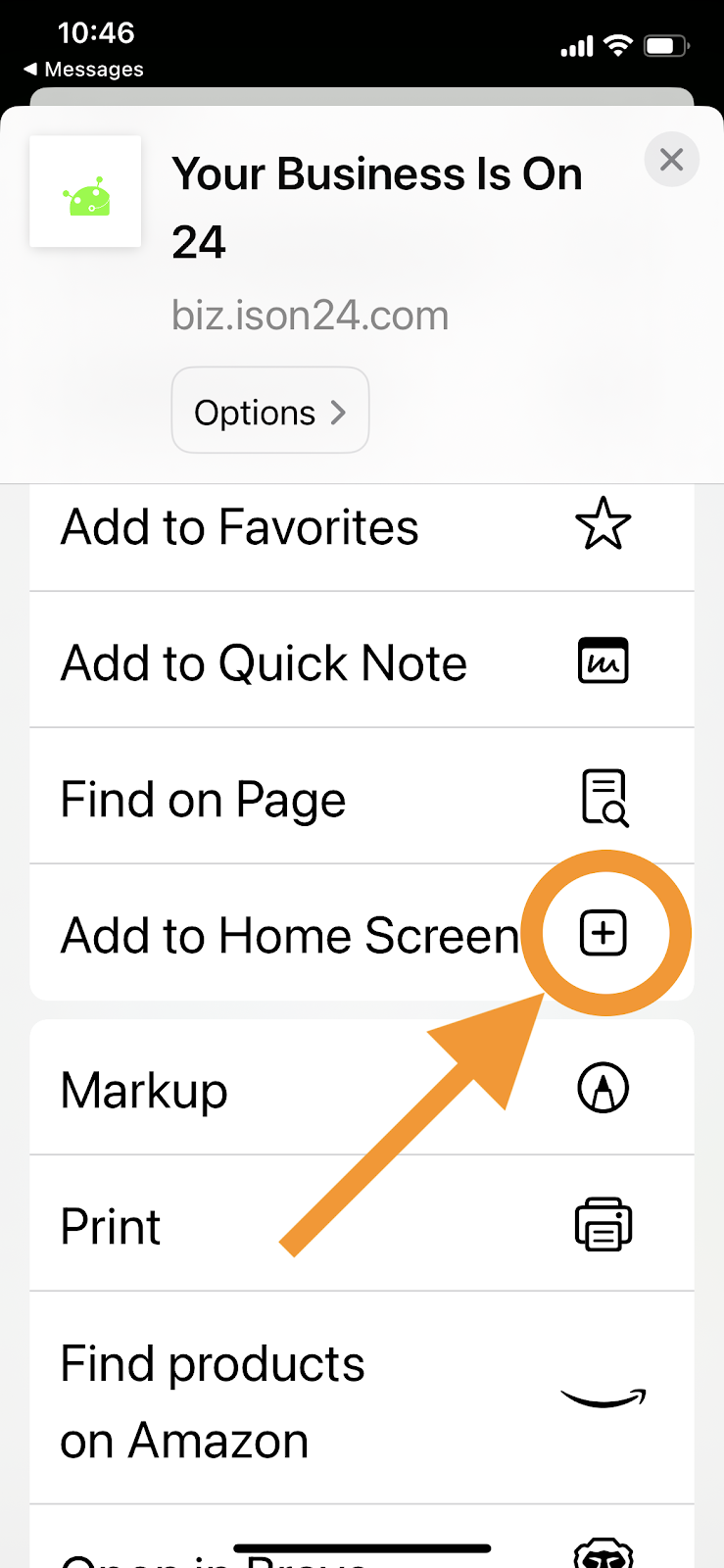
Scroll down the sharing options and tap on Add to Home Screen.
Tap on Add to Home Screen

5. Tap Done at the bottom. You will find the IsOn24 app home screen icon as shown below.
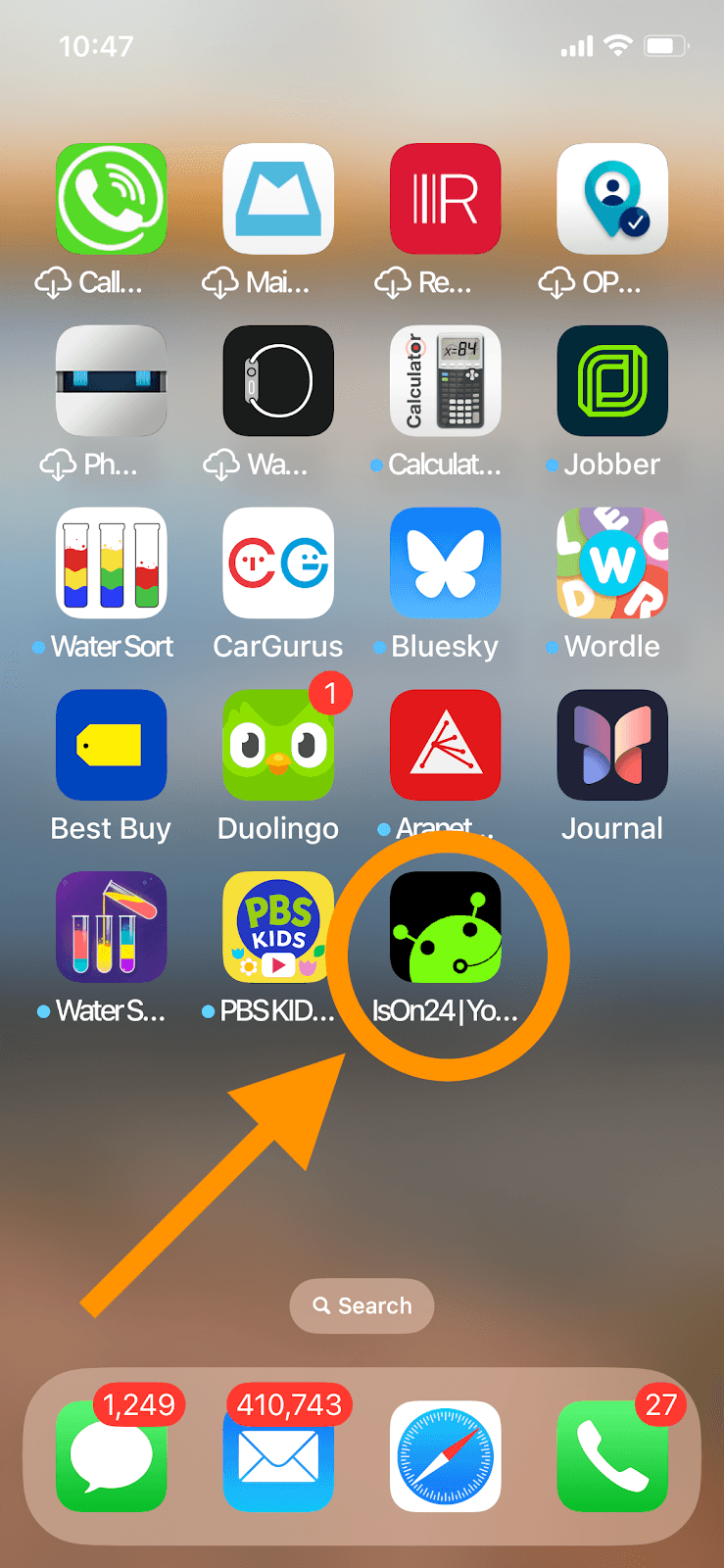
You will find the IsOn24 app home screen icon as shown below.
iPhone Home Screen with the IsOn24 App

Thanks!

appshow tointegrationonlinetext messagingtroubleshooting

Still need help?

Our care team is here M-F, 9 am - 5 pm PST. Text or call 408-837-7100, or send us a message.

By using our site, you acknowledge that you have read and understood our Terms of Use , and our Privacy Policy